
For many organizations, the question about AI coding tools isn't whether they help, but where the code goes. Teams under data sovereignty, residency, or regulatory constraints need to know which network handles their source code before they can adopt anything. GitLab Duo Self-Hosted answers that by letting administrators connect GitLab Duo features to models running on infrastructure they choose, with control over hosting, region, network path, and credentials.
In this tutorial, we'll connect GitLab Duo Self-Hosted to models hosted in Microsoft Foundry. Foundry is worth treating as a general-purpose serving platform rather than an OpenAI endpoint: Its catalog spans OpenAI GPT, Anthropic Claude, Meta Llama, and Mistral, and the families GitLab supports overlap heavily with what Foundry offers.
That matters because GitLab lets you assign a model per feature. You can run one family for agentic work, a code-specialized model for Code Suggestions, and a smaller model where request volume dominates, all deployed and billed through one Azure subscription.
The setup steps are the same regardless of family. Only the model you deploy, the deployment name you reference, and the Model family you select in GitLab change.
Microsoft's catalog moves quickly and will contain releases newer than GitLab's supported-model matrix. Catalog availability alone does not establish GitLab Duo support, so always check both vendors' documentation before choosing a model.
Why GitLab Duo Self-Hosted?GitLab Duo Self-Hosted lets you connect GitLab Duo to models deployed on-premises or through a supported cloud provider. Microsoft Foundry is useful when your organization already operates in Azure and wants to manage model deployments, access, networking, and consumption there.
Key benefits include:
- Deployment choice: Select the Azure region and deployment type that meet your availability and data-residency requirements.
- Multiple model families, one platform: Deploy GPT, Claude, Llama, or Mistral models side by side instead of contracting with each provider separately.
- Feature-level configuration: Assign models to individual GitLab Duo features instead of applying one model globally, mixing families if that suits your workloads.
- Azure integration: Apply Microsoft Entra identity, role-based access control, network isolation, and Azure Policy to your Foundry resources.
- Centralized operations: Monitor model usage and costs alongside your other Azure services.
The GitLab Duo Self-Hosted solution consists of three core components:
- Self-managed GitLab instance: Your existing GitLab instance where users interact with GitLab Duo features.
- AI Gateway: A service that routes requests between GitLab and your chosen LLM backend.
- Model endpoints: One or more model deployments exposed through Microsoft Foundry.
A single AI Gateway serves every model you configure, and GitLab decides which deployment to call based on the feature that made the request:
flowchart LR
    subgraph self["Your infrastructure"]
        GL["Self-Managed<br/>GitLab"]
        GW["AI Gateway<br/>(port 5052)"]
    end

    subgraph azure["Your Azure tenant"]
        subgraph foundry["Microsoft Foundry"]
            M1["duo-chat<br/>Agentic Chat, Agent Platform"]
            M2["duo-code-gen<br/>Code generation"]
            M3["duo-code-completion<br/>Code completion"]
        end
    end

    GL -- HTTPS --> GW
    GW --> M1
    GW --> M2
    GW --> M3
Note: You can use another serving platform if you are running on-premises or using another cloud provider.
What leaves your network
This shape of deployment is what makes GitLab Duo workable for teams with data sovereignty obligations, so it's worth being precise about where data travels.
In a fully self-hosted configuration, GitLab's documentation states that inference data — code inputs, model prompts, and model responses — does not leave your network. Requests go from your GitLab instance to your AI Gateway to your Foundry deployment, all within infrastructure you control. GitLab also does not capture which model or model provider you use.
What does leave, on an online license, is billing metadata: an instance ID, a de-identified user ID, a call count, and a timestamp. On an offline license, your instance doesn't connect to GitLab's billing components at all.
Two conditions attach to that:
- It applies only to features backed by your own models. If you route a feature to a GitLab-managed model, that feature's requests go to the GitLab-hosted AI Gateway instead, and the deployment is hybrid rather than fully self-hosted.
- Within Azure, residency depends on deployment type. Data at rest stays in the Azure geography you choose, but where inferencing runs depends on whether you pick a global, data zone, or regional deployment. This is the setting to get right if you have jurisdictional requirements.
Choosing a model means satisfying two independent constraints: GitLab must support it, and Foundry must offer it. Neither implies the other.
GitLab rates each supported model against four capability areas: code completion, code generation, GitLab Duo Agentic Chat, and GitLab Duo Agent Platform. These families appear in both GitLab's supported-model table and the Foundry catalog:
FamilyHow Foundry offers itWhat to knowGPTSold by AzureDeepest overlap with GitLab's table; simplest path. Includes general-purpose, coding-optimized, and smaller low-latency variantsClaudeFrom partners, via Azure MarketplaceStrong agentic ratings; extra Marketplace prerequisites and narrower region coverageLlamaSold by Azure and from partnersRatings vary sharply by model size and featureMistralFrom partnersIncludes Codestral, which is code-specializedSpecific version numbers move quickly on both sides, so this post deliberately avoids naming a "best" model. Instead, pick using these rules:
- Simplest path: Choose a current general-purpose GPT model rated full functionality in all four areas.
- Ratings are per feature, not per family: This is a model that is excellent for GitLab Duo Agentic Chat can be rated limited for code completion. Check each feature you plan to enable rather than assuming a family is uniformly strong.
- Newer is not automatically supported: Foundry ships releases ahead of GitLab's matrix, and also carries families such as Grok, DeepSeek, and Phi that are not in GitLab's supported list. Use those only after GitLab adds them, or evaluate them under GitLab's compatible-models beta, which accepts any model exposed through an OpenAI-compatible endpoint.
- Older GPT-4 era models still appear in GitLab's table but are not the best starting point for a new deployment.
Always confirm current ratings in GitLab's supported models page before you commit, and treat any model named in this post as an example rather than a recommendation.
PrerequisitesBefore we begin, you'll need:
- A GitLab Premium or Ultimate Self-Managed instance. GitLab Duo Self-Hosted has been generally available since GitLab 17.9, but individual features have their own minimums, and GitLab Duo Agent Platform Self-Hosted requires a considerably later release. Check the feature versions table for the features you plan to enable, and prefer a recent release for current model support.
- The applicable GitLab Duo add-on for your deployment.
- Administrator access to GitLab.
- An Azure subscription with access to Microsoft Foundry.
- Quota for each model you plan to deploy, in a supported Azure region and deployment type. Check region availability for models sold by Azure or models from partners first.
- For partner models such as Claude or Mistral, an Azure subscription eligible for Marketplace purchases and the required Marketplace permissions. Student, free-trial, and credit-only subscriptions are not supported.
- A local AI Gateway installed according to the GitLab installation documentation.
Note: If you aren't a GitLab customer yet, you can start a free trial of GitLab Ultimate.
Implementation steps1. Deploy one or more models in Microsoft Foundry
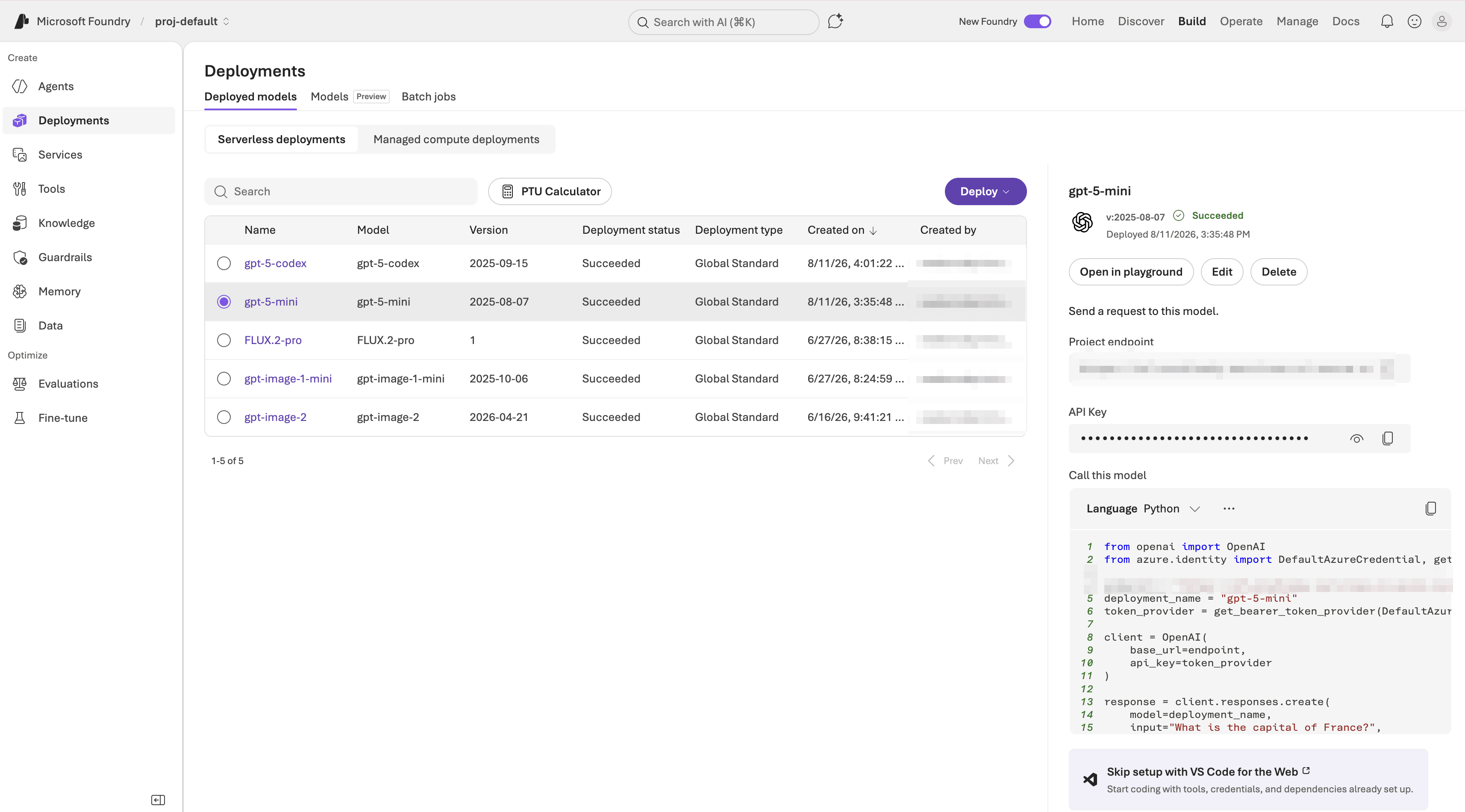
Open the Foundry portal, select your project, and deploy your chosen models from the catalog. Model availability varies by region, cloud, and deployment type, and some subscriptions require an approved quota increase.
Before you deploy, confirm your model is offered in the region and deployment type you intend to use. Microsoft publishes this in Region availability for Foundry Models sold by Azure, with separate tabs for standard, provisioned, and batch. Coverage is uneven: a model can be broadly available as Global Standard yet offered in only a handful of regions as Regional Provisioned Managed.
Partner models are more constrained than Azure OpenAI models. Claude, for example, is concentrated in a small number of regions, and deploying it requires accepting Marketplace terms. Verify both region and subscription eligibility before committing to a family.
Give each deployment a name you can trace later. GitLab references the deployment name rather than the catalog model name, so a vague name is hard to audit.
Naming by role rather than by model version, such as duo-chat or duo-code-completion, has a practical advantage: when you upgrade to a newer model, you can point the deployment at it without editing the model identifier in GitLab. Naming by version, such as duo-gpt-5-2, is more explicit but means reconfiguring GitLab on every model change.
If you're starting out, deploy a single model and expand once it works end to end.
After deployment, record these values for each deployment:
- The endpoint URL
- The deployment name
- An API key with access to the deployment
Use a secret-management process approved by your organization. Do not commit the API key to a repository.
2. Install the AI Gateway
The AI Gateway routes requests between GitLab and the selected model endpoint. Install it with Docker or the Helm chart by following the current AI Gateway installation guide.
Avoid copying an old image tag or API-version example from another tutorial. The AI Gateway and GitLab versions should remain compatible, and GitLab's installation guide provides the current image and required settings. The Foundry endpoint and API key are entered when you add each model to GitLab in step 4; they do not need to be embedded in the example Docker command.
One gateway serves every model you configure, so you don't need a separate gateway per deployment or per model family.
3. Configure GitLab to access the AI Gateway
Now that the AI gateway is running, configure your GitLab instance to use it:
- On the left sidebar, at the bottom, select Admin.
- Select GitLab Duo.
- In the GitLab Duo section, select Change configuration.
- Under Local AI Gateway URL, enter the URL for your AI gateway and port (e.g.,
https://ai-gateway.example.com:5052). - Select Save changes.
For production deployments, use TLS and restrict network access to the gateway. If the gateway uses a private IP address or internal hostname, add it to GitLab's outbound-request allowlist.
4. Add each deployment to GitLab
Repeat this procedure once per Foundry deployment you want GitLab to use.
- In the upper-right corner, select Admin.
- In the left sidebar, select GitLab Duo.
- Select Configure models for GitLab Duo.
- Select Add self-hosted model.
- Complete the fields:
- Deployment name: Enter a recognizable name, such as
Agentic Chat on Microsoft Foundry. - Model family: Select the family that matches the model, such as GPT or Claude.
- Endpoint: Enter the endpoint URL from your Foundry deployment.
- API key: Enter the API key for the deployment.
- Model identifier: Enter
azure/YOUR-DEPLOYMENT-NAME, using the exact deployment name from Foundry. For example,azure/duo-chat.
- Deployment name: Enter a recognizable name, such as
- Select Add self-hosted model.
The prefix describes how a model is served, not who built it. Foundry can expose non-OpenAI models through the Azure OpenAI endpoint, in which case azure/ still applies. If you deploy a partner model that you reach through a different Foundry endpoint, confirm the correct prefix in GitLab's configuration documentation rather than assuming. A mismatched prefix produces the "Model not found" error described below.
5. Assign models to GitLab Duo features
- In Admin > GitLab Duo, select Configure models for GitLab Duo.
- Select the AI-native features tab.
- For each feature you want to route to Foundry, select a deployment from the dropdown list.
This is where the breadth of the catalog pays off, because features do not have to share one model or even one family. One reasonable split:
- Code completion: a smaller, faster model from the family you chose, where request volume is high and latency is most visible.
- Code generation: a code-specialized model, such as a Codex or Codestral variant.
- GitLab Duo Agentic Chat: a broadly capable general-purpose model. If you don't set a model for an individual chat sub-feature, it inherits the model configured for General Chat in the Admin area.
- GitLab Duo Agent Platform: any model rated full functionality for Agent Platform in GitLab's matrix. Smaller models are often rated lower here than they are for completion and chat.
Treat that split as a starting hypothesis rather than a tuned configuration. Begin with a single model across the features you plan to enable so you have a clean quality, latency, and cost baseline, then introduce a second model only where your own measurements justify it.
Verifying your setupTo ensure that your GitLab Duo Self-Hosted implementation with Microsoft Foundry is working correctly, perform these verification steps:
1. Run the health check
After running the health check of your model to be sure that it's up and running, return to the GitLab Duo section from the Admin page and click on Run health check. This will verify if:
- The AI gateway URL is properly configured.
- Your instance can connect to the AI gateway.
- The required GitLab Duo add-on is active.
- A model is assigned to Code Suggestions — as this is the model used to test the connection.
If the health check reports issues, refer to the troubleshooting guide for common errors.
2. Scaffold a FastAPI service with code generation
Code generation is a good first test because it exercises the whole path end to end and produces an unmistakable result. It also sends more context than code completion, so a misconfigured endpoint or an undersized quota shows up immediately.
Code Suggestions has two distinct behaviors, and knowing which one you're triggering matters when you interpret the result:
- Code completion fires as you type and finishes the current line. Low latency, usually under a second.
- Code generation fires when you press Enter after a comment describing what you want. It can return whole functions or classes, and may take more than five seconds.
To scaffold a FastAPI service:
- Open a project in your IDE and create an empty file, such as
main.py. Code generation is more accurate when the file has fewer than five lines, so an empty file is the ideal starting point. - Write a comment that names the framework and states the outcome you want:
# Create a FastAPI service with a health check endpoint and CRUD endpoints for # a "tasks" resource backed by an in-memory list. Use Pydantic models for # request and response bodies, and return appropriate HTTP status codes. - Press Enter after the comment. The trailing newline signals that your instructions are complete.
- Wait for the suggestion, then press Tab to accept it or Esc to reject it.
Naming the framework explicitly is what makes this work. GitLab's guidance for code generation is to state the outcome, stay specific but concise, and name the library or framework you want. A vaguer comment such as # web service gives the model far less to work with.
Two things to expect. Code generation output is capped at roughly 2048 tokens, so you'll get a solid scaffold rather than a finished application. And because these models are non-deterministic, the same comment won't produce identical code twice, which is normal rather than a sign of misconfiguration.
If you assigned different models to different features, test them separately so a failure points at one deployment. Confirming code generation also confirms that the model you mapped to Code generation in Step 5 is the one actually serving the request.
3. Check AI Gateway logs
Review the AI gateway logs to see requests being routed to your Microsoft Foundry deployments:
In your terminal, run:
docker logs gitlab-ai-gateway --tail 100 -f
You should see log entries indicating successful requests to the configured model endpoint. Avoid enabling prompt logging unless your organization's data-handling policy permits it.
Next stepsHere are the next steps to take.
Keep model selection current
The GitLab team actively tests each model's performance for each feature and provides tier ranking of model's performance and suitability:
- Full functionality: The model can likely handle the feature without any loss of quality.
- Partial functionality: The feature works, but there might be compromises or limitations.
- Limited functionality: The model is unsuitable for the feature and might produce significant quality loss or performance issues.
Do not infer compatibility from the model name or from its presence in the Foundry catalog. Use GitLab's models and hardware requirements page as the source of truth for GitLab's current ratings.
Cost optimization strategies:
- Begin with a single model rated full in all four areas across the features you plan to enable.
- Measure quality, latency, token use, rate-limit behavior, and cost with representative workloads.
- Move high-volume features such as code completion to a smaller model once you have confirmed the quality trade-off is acceptable, a