
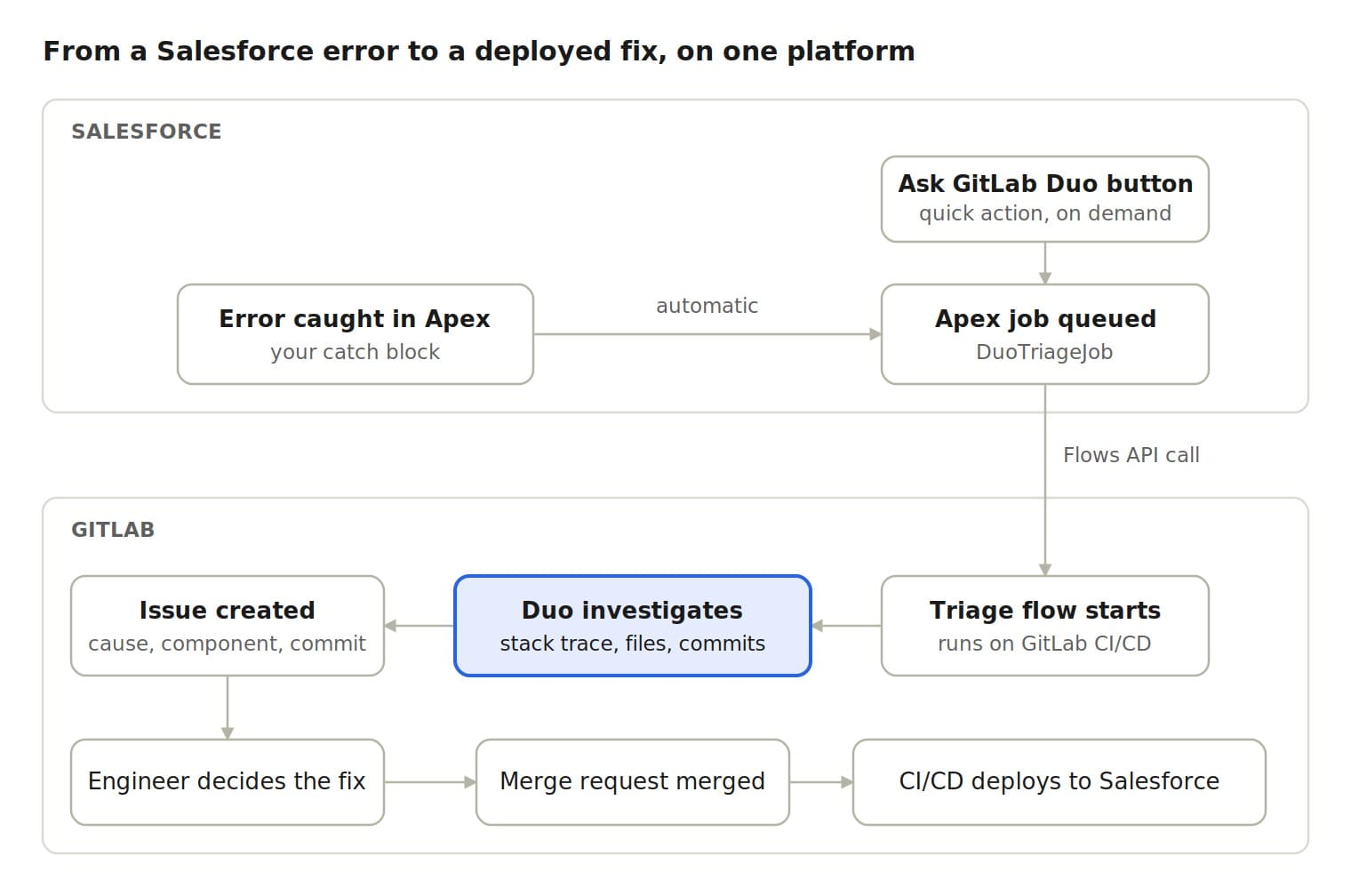
Developers mostly use GitLab Duo Agent Platform where they already work: the IDE, merge requests, and issues. But DevSecOps teams also support the business systems the rest of the company runs on, and those systems break too.
In Salesforce, for example, when a validation fails, a callout times out, or a null slips through a trigger, the error gets logged, but the log doesn’t explain the cause. An engineer still has to read the stack trace, find the class in the repository, check what changed recently, and decide whether this is a one-off or a regression. Meanwhile, the business user who hit the error has to wait.
When your Salesforce metadata lives in GitLab and ships through GitLab CI/CD, the code that explains the error is already there. In this tutorial, Salesforce calls a custom GitLab Duo Agent Platform flow through the Flows API the moment an error happens. The flow investigates the code, and your team gets a GitLab issue that already contains the root-cause analysis.
Along the way, three parts of the GitLab platform work together: GitLab Duo Agent Platform investigates the error, a GitLab issue tracks the work, and GitLab CI/CD runs the flow and ships the fix.
Salesforce is the example we’ll walk through in this tutorial, but the same approach works for any system that can make an HTTP request.
What you'll buildSalesforce makes one call to GitLab. A custom flow in GitLab Duo Agent Platform does the rest.
Errors reach GitLab Duo Agent Platform automatically from your Apex error handling, or on demand from a button. Either way, the same Apex job calls the Flows API, and the flow opens an issue with its analysis.
Prerequisites- GitLab Premium or Ultimate, on GitLab.com or GitLab 19.5 and later. The Flows API used in this tutorial is generally available from 19.5.
- GitLab Duo Agent Platform turned on, with custom flows allowed for your top-level group.
- Your Salesforce metadata (Apex classes, triggers, Flows) stored in a GitLab project. This is the project the flow will read.
- A Maintainer or Owner role in that project.
- In Salesforce, permission to create a Named Credential, a custom metadata type, and Apex classes.
- Your Salesforce deployments must be running through a GitLab CI/CD pipeline, so the fix can ship from the same issue.
Start in GitLab, because Salesforce will need the flow's ID later.
A custom flow is one YAML file in the flow registry v1 syntax. This one has a single agent. When Salesforce starts the flow, it sends the error details as the flow's goal. The agent reads them as context:goal, investigates the repository, and opens one issue.
version: "v1"
environment: ambient

components:
  - name: "sf_error_triage"
    type: AgentComponent
    prompt_id: "sf_error_triage_prompt"
    inputs:
      - from: "context:project_id"
        as: "project_id"
      - from: "context:goal"
        as: "error_report"
    toolset:
      - "find_files"      # locate the class or Flow in the repository
      - "grep"
      - "read_file"
      - "list_commits"    # find recent changes to that file
      - "create_issue"    # the only write: open the triage issue

prompts:
  - prompt_id: "sf_error_triage_prompt"
    prompt_template:
      system: |
        You triage Salesforce runtime errors for a team that keeps its
        Salesforce metadata (Apex classes, triggers, Flows) in this project.

        You receive an error report with a class name, exception type,
        message and stack trace.

        1. Find the source file for the class or Flow named in the report.
        2. Read the code around the lines in the stack trace.
        3. List recent commits that touched that file and identify any change
           that plausibly introduced the error.
        4. Create one issue:
           - Title: "[Salesforce error] <exception type> in <class>"
           - Label: salesforce-error
           - Description: the original error, then sections for
             Likely cause, Affected component, Suspect change,
             Suggested next step, and Confidence (high, medium or low,
             with one line of reasoning).

        Rules:
        - Cite file paths, line numbers and commit SHAs for every claim.
        - If you cannot find the code or a suspect commit, say so. Do not guess.
        - Do not change code. A person decides what happens next.
      user: |
        Project ID: {{project_id}}
        Error report:
        {{error_report}}
      placeholder: history

routers:
  - from: "sf_error_triage"
    to: "end"

flow:
  entry_point: "sf_error_triage"
The toolset is deliberately narrow: four tools read and one creates an issue. The flow can't push code or change existing issues, which makes it easy to review and easy to trust.
Two lines in the prompt do the most work. Requiring a citation for every claim lets an engineer check the reasoning in a minute. Allowing "not found" stops the agent from inventing a cause.
To create the flow, go to your project, select AI > Flows > New flow, choose Flow, paste the YAML, and select Create flow. You can also build and test it in VS Code with the GitLab flow builder.
Step 2: Enable the flow and get its consumer IDA flow must be enabled in a project before anything can run it.
- In your project, select AI > Flows, open the Managed tab, and select your flow.
- Select Enable and choose the project that holds your Salesforce code. GitLab creates a service account for the flow, named
ai-<flow>-<group>. The flow runs with a composite identity, so it can never access more than the user who starts it. When Salesforce starts the flow through the API, GitLab runs it as this service account. - You don't need a mention or assign trigger. Salesforce will start this flow through the API.
To start a custom flow through the API, Salesforce passes the flow's ai_catalog_item_consumer_id. Look it up with a short GraphQL query from the docs, and use the number at the end of the returned gid://gitlab/AiCatalogItemConsumer/<number>. Note it, along with the project ID.
Finally, create a project access token with the api scope and at least the Developer role. Salesforce will use it to call GitLab. With a lower role, the API refuses to run catalog flows.
Store the token in a Named Credential. Create a Named Credential called GitLab_API with the URL https://gitlab.com, backed by an External Credential that sends your project access token in the PRIVATE-TOKEN header. The token never appears in code.
Call the Flows API from a Queueable. Salesforce doesn't allow callouts in the middle of saving a record, so the call runs as a background job. The job turns the exception into the flow's goal and starts the flow:
public with sharing class DuoTriageJob implements Queueable, Database.AllowsCallouts {
    private final String goal;

    public DuoTriageJob(Exception e, String className) {
        goal = 'Class: ' + className
            + '\nException: ' + e.getTypeName()
            + '\nMessage: ' + e.getMessage()
            + '\nStack trace:\n' + e.getStackTraceString();
    }

    public void execute(QueueableContext ctx) {
        Duo_Triage_Setting__mdt cfg = Duo_Triage_Setting__mdt.getInstance('Default');

        HttpRequest req = new HttpRequest();
        req.setEndpoint('callout:GitLab_API/api/v4/ai/duo_workflows/workflows');
        req.setMethod('POST');
        req.setHeader('Content-Type', 'application/json');
        req.setBody(JSON.serialize(new Map<String, Object>{
            'project_id'                    => cfg.Project_Id__c,
            'ai_catalog_item_consumer_id'   => cfg.Consumer_Id__c.intValue(),
            'goal'                          => goal,
            'start_workflow'                => true,
            'allow_agent_to_request_user'   => false,
            'agent_privileges'              => new List<Integer>{ 1, 2, 3 },
            'pre_approved_agent_privileges' => new List<Integer>{ 1, 2, 3 }
        }));
        HttpResponse res = new Http().send(req);
        // 201 Created: the response includes web_url, a link to the agent session.
    }
}
The project ID and consumer ID from Step 2 live in a custom metadata type, Duo_Triage_Setting__mdt, so you can change them without a deployment.
Three settings in the request body do the most work:
allow_agent_to_request_user: falsemeans the flow runs to completion without pausing for questions. Nobody is watching a Salesforce error at 2 a.m.agent_privilegeslimits the agent to reading files (1), reading GitLab (2), and writing to GitLab (3), which it needs to create the issue. It can't run commands or use Git. List all privileges to check the IDs on your instance.pre_approved_agent_privilegesrepeats the same list, so the flow never stops to wait for tool approval.
This example leaves out response checks, retries, and tests. Add them before you go to production.
Step 4: Start the flow automatically or on demandAutomatically. Queue the job wherever your code catches and handles an exception:
try {
    OpportunityDiscountService.applyTierDiscount(opportunities);
} catch (Exception e) {
    System.enqueueJob(new DuoTriageJob(e, 'OpportunityDiscountService'));
    // ...your existing error handling
}
If the whole transaction is rolled back, Salesforce discards the queued job too, so place the call where your code handles the error and carries on.
On demand. Some teams would rather choose which errors are worth investigating. Wrap the job in an invocable Apex action, label it Ask GitLab Duo to investigate, and add it to a screen flow that runs as a quick action on the record where you keep errors, such as a log record or a support case. One click in Salesforce, and the issue appears in GitLab a few minutes later.
Step 5: What your team seesA user saves an Opportunity, an Apex trigger throws, and a few minutes later a new issue appears in the GitLab project. Here is an illustrative example of what the flow writes:
## [Salesforce error] System.NullPointerException in OpportunityDiscountService

Label: salesforce-error

### Original error
Attempt to de-reference a null object
Class.OpportunityDiscountService.applyTierDiscount: line 48, column 1
Trigger.OpportunityTrigger: line 12, column 1

### Likely cause
applyTierDiscount() reads opp.Account.Tier__c without a null check (line 48).
Opportunities saved without an Account reach this line with opp.Account == null.

### Affected component
force-app/main/default/classes/OpportunityDiscountService.cls,
called from OpportunityTrigger (before update).

### Suspect change
Commit 3f9c2ab, "Apply tier discount on stage change", added the Tier__c lookup.
Before that commit, the method returned early when AccountId was blank.

### Suggested next step
Restore the early return for a blank AccountId, or guard the lookup.
Add a test that updates an Opportunity with no Account.

### Confidence
High. The stack trace line matches the new code in 3f9c2ab.
Nothing in Salesforce or the codebase changed. The flow did the first round of investigation and left the decision to an engineer: fix it now, schedule it, or close it as expected behavior.
The Flows API response includes a web_url for the agent session. Open it to see each step the flow took, which is the fastest way to tune the prompt.
Before you run this in production, check these points. They decide whether the pattern holds up under real traffic.
- Send the shape of the error, not the data. Strip record IDs, emails, and free text that may hold customer data from the message before it leaves Salesforce. Review what the goal contains with your security team before you turn this on.
- Grant the fewest privileges. Reading files, reading GitLab, and creating an issue are enough. Expand the flow, for example to open merge requests, only after it has earned trust with accurate analysis.
- Scope the token. Use a project access token for one project, not a personal token, and rotate it on a schedule.
- Keep a person in charge. The flow investigates; an engineer decides. Citations in every issue let the engineer verify the reasoning instead of redoing it.
Follow that error from start to finish:
- GitLab Duo investigates it. The flow reads the stack trace, finds the code, and points to the change that most likely caused the error.
- A GitLab issue tracks it. The analysis becomes work the team can label, prioritize, assign, and plan into a milestone, like any other issue.
- GitLab CI/CD runs it and ships the fix. The flow itself runs on GitLab CI/CD, and so does your Salesforce deployment pipeline. An engineer opens a merge request from the issue, the pipeline validates and deploys the change to Salesforce, and the issue closes when the merge request merges.
Because every step happens in GitLab, the trail stays connected. The issue links to the merge request, the merge request to its pipeline, and the pipeline to the deployment. Anyone can see what broke, why, who fixed it, and when the fix reached production.
Beyond Salesforce errorsStrip away the Salesforce details and the pattern is simple: a business system makes one HTTP call, and a custom GitLab Duo flow that knows your code does the investigation. Any system that can send a request can start a flow.
Here are a few ideas for where the same pattern could help:
- A failed sync in an ERP integration, traced to the mapping code that last changed.
- A support case tagged "possible bug," checked against recent releases before it reaches an engineer.
- A failed scheduled data job, matched to the last change in its pipeline definition.
For DevSecOps teams, this means errors from the business systems they support arrive as issues with a likely cause attached, not as raw logs to trace manually. Business teams don't need to learn GitLab, and engineers don't need to watch another dashboard. Each system keeps doing its job, and GitLab Duo Agent Platform gives engineering a head start every time something breaks.
Try it yourselfPick one business system your team supports and one error it logs today. Give a custom flow the code, call it from that system, and see what the first analysis tells you. Start a free trial of GitLab Duo Agent Platform, or if you're already on GitLab Premium or Ultimate, turn on Duo Agent Platform and build your first custom flow.
Further reading
- Flows API
- Custom flows
- Custom flow YAML schema
- Composite identity
- GitLab Duo Agent Platform: complete getting started guide