
I haven’t been this excited about an Apple Watch in a long time. Last week, Apple introduced the Apple Watch Series 12 and Apple Watch Ultra 4, which will be available at the end of the week. The new Watches feature the S11 chip, which enables a bunch of new features, some of which won’t debut until later this year. At the same time, Apple is dropping support for more Watches than usual.
What we’re witnessing is a reboot of the Apple Watch and watchOS forced by advances in AI. The Apple Watch and its OS found their niche years ago, freeing us from pulling out our iPhones for notifications, tracking our health and fitness, and enabling the occasional Siri request. It was a good and comfortable spot for what by all accounts has been one of the most successful wearables to date, but watchOS also felt stuck in a rut.
What we’re witnessing is a reboot of the Apple Watch and watchOS forced by advances in AI.
Every year we got a few new workout types, a new watch face, and a few other features, but the OS didn’t advance much. What’s different this year is that watchOS 27 is breaking with slower hardware and looking forward to the substantially more powerful S11 chip, which will allow the Apple Watch to expand into all-new areas.
Supported By
Finalist: Daily PlannerFinalist Daily Planner: Your day on your wrist. The paper-inspired planner is now on Apple Watch.
What this transition also means is that there is not just one set of features to track in watchOS 27 this year but three:
- those that arrive today for anyone with a compatible Apple Watch,
- those that arrive at the end of the week that are exclusive to the new Apple Watch Series 12 and Ultra 4, and
- those that are coming later this year.
That makes this more than just a review. It’s also a preview of things to come and a roadmap for where the Apple Watch is heading.
There’s more than usual to cover this year, so let’s dive in and check it out.
View this on MacStories.
[table_of_contents]
Interface, Navigation, and the Smart StackNotifications, Smart Stack suggestions, and Control Center are all easier to read in watchOS 27.
I like Liquid Glass on all of Apple’s devices and didn’t have any issues with its first iteration in watchOS 26. However, with the latest update, my Apple Watch Ultra 3’s UI is ever so slightly more readable. Smart Stack suggestions and notifications don’t bleed through each other as much, and app icons are sharper.
On a small screen like an Apple Watch, you may never notice the difference, but there’s a sharpness throughout the UI that’s reminiscent of the sharpness you see in app icons on iOS, iPadOS, and macOS. Edges are more defined and colors are diffused less, making everything a little crisper. It’s a subtle change, but a good one.
The watchOS 27 change most users will notice first is the change to the way you navigate through the OS’s UI. The App Switcher is gone, replaced by the simpler Dynamic App Grid. And although I expect the App Switcher will be missed by some, I don’t miss it at all. Sure, it was a little hard to break the Digital Crown double-press habit at first, but as someone who returns to the same handful of apps repeatedly, I find the new design makes more sense.
Before watchOS 27, the App Switcher was invoked with a double press of the Digital Crown. That revealed a Rolodex-style view of your recent apps that you could move among by turning the Digital Crown. The UI served as a shortcut between frequently used apps that avoided returning to the app grid or list views on your Watch, which can be crowded if you have a lot of apps installed.
The App Switcher was also a convenient way to close apps. You can still force quit an app in watchOS 27, but you need to open the app, hold the side button until the power controls appear, and then release the side button and hold the Digital Crown until the app closes.
The new Dynamic App Grid.
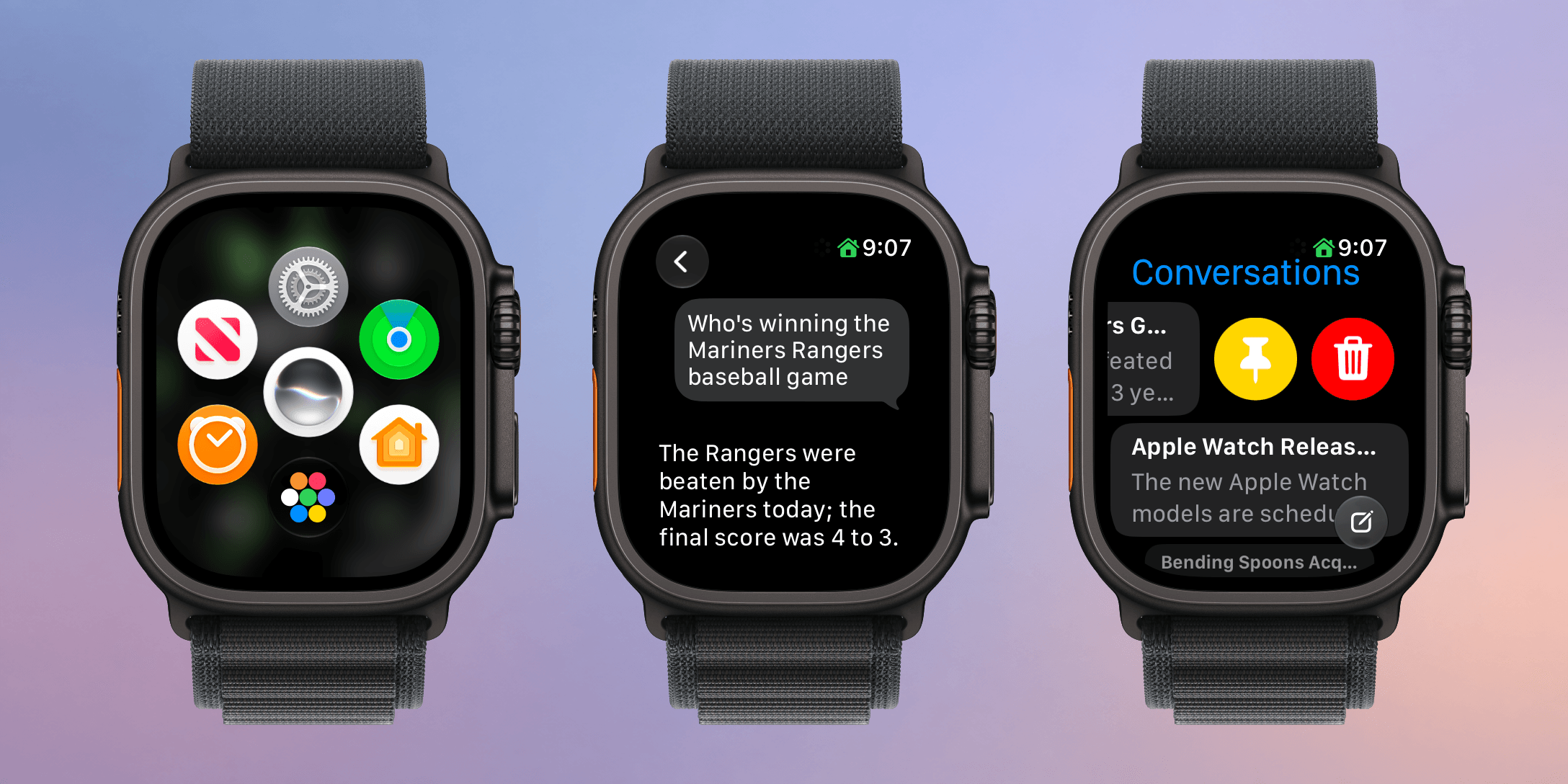
Now, whether you single- or double-press the Digital Crown, the new Dynamic App Grid appears. At its center is the new Siri app. Below that is the icon to take you to the app list or grid view depending on how your Watch is set up. Apple says that the remaining five icons that circle the Siri icon are placed based on recency and frequency of use.
I’ve been using watchOS 27 all summer, and my recently used apps have barely changed. Currently, those apps include Settings, Alarms, News, Maps, and Moshi, an app I use for monitoring AI agent projects.
What the Dynamic App Grid gives up in predictability is more than made up for by the simpler gesture and UI.
I don’t think I’m alone in being a creature of habit when it comes to the Apple Watch apps I use. Having those five apps just one Digital Crown press away is far easier than pressing twice, scrolling to find what I want, and then tapping into an app. Between the Dynamic App Grid and the expanded Smart Stack, there are plenty of ways to get to the apps you use the most, which I love. What the Dynamic App Grid gives up in predictability is more than made up for by the simpler gesture and UI.
watchOS 27 adds a new single tap gesture for selection, which allows you to do a lot more simply with gestures. For example, a double tap gesture with your thumb and index finger opens the Smart Stack to the first card. Double tap again to move to the next card or, if a card has multiple items that can be selected, to the next item on the card. Once what you want is selected, a single tap will open it. The existing wrist flick gesture is then used to return to the watch face.
Using the single-tap gesture.
The Smart Stack is now stacked with more types of cards, too. Apple has added cards for birthdays stored in Contacts, your car’s parking location, a prompt to change an alarm before a holiday, a shortcut to resume a Siri conversation, transit card balances, pinned Messages conversations, Theater Mode, and more. It’s a nice expansion that has made my Smart Stack feel more useful all summer because there’s always something relevant to me there.
There’s a lot more to see in the Smart Stack now.
The other change announced just last week is the addition of the Siri Modular face, which I immediately installed on my Apple Watch Ultra 3. The watch face displays the top Smart Stack item in a large complication in the middle of your Watch. It’s a nice touch, but because you can’t dismiss the media playback card without turning off Live Activities, that one has wound up on my watch face more frequently than I’d like. Still, when an app like Moshi reports that an AI agent’s task has been completed, it’s nice to be able to see a snippet of the message directly on my watch face. It also strikes me as a great way to keep track of tasks with a deadline from task manager apps like this review’s sponsor, Finalist.
The Siri Modular watch face.
So, on balance, I like what Apple has done with watchOS 27’s navigation. The Dynamic App Grid takes a little getting used to, but I appreciate its simplicity. The Smart Stack, single tap gesture, and new Siri Modular watch face combine to make the Smart Stack more useful than ever too. Watch interactions are meant to be short, and watchOS 27 nails that goal.
Siri AI and the Apple Watch as HelperYou can get to Siri from the Dynamic App Grid, a complication, or by long-pressing the Digital Crown.
Siri AI is a big part of watchOS 27 just like it is on every Apple platform (except tvOS) this year. As on those other platforms, Siri has a dedicated app on the Watch. The main difference is in how you interact with Siri. On macOS, iOS, and iPadOS, you can speak or type queries in the Siri app. On watchOS 27, the app accepts spoken queries only. That struck me as a little strange at first given that Apple offers multiple ways to input text on watchOS, but the reality is chatbot queries are typically longer than a dashed-off text message, so in practice, the lack of text input is fine.
Siri AI requires an Apple Watch Series 9 or later, Ultra 2 or later, or SE 3, along with a nearby iPhone that supports Apple Intelligence: an iPhone 15 Pro, 15 Pro Max, or any iPhone 16 or later model. It’s being released as a beta, initially in English only, and won’t be available in the EU for the time being. Apple also says it will introduce usage limits for Siri AI in the future. Those limits will vary depending on factors such as request complexity and system demand. Increased access will be available for a fee. To make a Siri request, you can tap an installed complication, long-press the Digital Crown, or say “Siri” or “Hey Siri.” Once you start a chat with Siri, it retains the context, allowing you to ask follow-up questions without restating everything.
Reviewing and managing conversations in the Siri app.
Alternatively, you can open the app where you can see your past chats. The app’s button to start a conversation accepts spoken input only. Type to Siri remains available through Accessibility settings, but it’s a separate way to invoke Siri rather than a text-entry option within the app.
Your query list includes any requests you’ve made on your Apple Watch or any other Apple device, all synced via iCloud. In my experience, sync is fast over a good network connection with chats appearing on my Mac seconds after a response is delivered to my Watch. From the Siri Apple Watch app, you can also swipe left on an entry to delete or pin it, or tap the entry to read it.
Pinned conversations can be collapsed and expanded in the Siri Watch app.
Siri AI on the Apple Watch also offers the same personal-context capabilities that let it find information in your email, photos, tasks, and notes and use it to take action in apps. I explored those capabilities and their shortcomings in my macOS Golden Gate review. My experience on the Watch hasn’t been meaningfully different, apart from occasional minor latency, so that review is the best place to dig into my testing.
What changes here is the convenience of having those capabilities on your wrist within easy reach. The nearby iPhone supplies the connection to Apple Intelligence, but the Watch is both the immediate interface and, for many requests, the place where the resulting action occurs.
It’s also worth stepping back to think about what Siri could do before. I rarely used Siri for more than setting timers and alarms, checking the weather, and controlling my lights. However, now, I can tell Siri to remind me to take out the trash tomorrow morning and add a calendar event for a dinner reservation in one breath. That’s not wildly complex stuff, but it’s very convenient, especially when your iPhone is in your pocket or across the room and you think of something you need to do. Siri also has the same broad world knowledge that it does on other Apple devices, allowing you to check recent sports scores, check the news, and answer questions about the world around you.
Not every technology advance needs to be a monumental leap forward. Sometimes the simplest, most convenient small thing has the greatest impact. Siri on the Apple Watch has that potential, although with time, I’d like to see it become independent of the iPhone.
Workouts and FitnessYou can leave your iPhone at home and still use Workout Buddy.
I’m happy to be the one who gets to tell you that Workout Buddy has been freed from the requirement that you carry your iPhone with you. Users tend to love or hate Workout Buddy. Personally, I love it. Sure, its incredibly chipper voice can grate if you’re heading out for a long walk and aren’t feeling it, but that’s sort of the point. Once enabled, Workout Buddy is there to encourage you with no judgment. It’ll tell you you’re below your average targets with the same cheerfulness as when you’re crushing it.
Once enabled, Workout Buddy is there to encourage you with no judgment. It’ll tell you you’re below your average targets with the same cheerfulness as when you’re crushing it.
When Workout Buddy debuted, my disappointment wasn’t with its voice, personality, or the information it offers. My issue was that the time I need a pep talk when exercising is when I’m out on a long run by myself suffering in the summer heat. The problem is that until watchOS 27, Workout Buddy was only available if you had your iPhone with you. That was fine when I went on a long walk, and I’m sure many cyclists were fine, but one of the reasons I got an Apple Watch was to never lug an iPhone with me while I ran, especially an iPhone like my iPhone 17 Pro Max.
With watchOS 27, I’m pleased to report that Workout Buddy works as well over a Wi-Fi or cellular connection as it does tethered to your iPhone and is compatible with walking, running, cycling, hiking, elliptical, stair stepper, HIIT, and functional and traditional strength training. Workout Buddy speaks Mexican Spanish now, too. In fact, it’s an Apple Intelligence feature that works without your iPhone nearby, which gives me hope for more iPhone-independent Apple Intelligence features in future releases.
Using Workout Buddy without an iPhone nearby requires the same Watch models as the Siri app: an Apple Watch Series 9 or later, Ultra 2 or later, or SE 3. You’ll also need Bluetooth headphones, Apple Intelligence enabled on your iPhone, and a Wi-Fi or cellular connection.
Workout Buddy also offers more insights about your workout by comparing pace, distance, and workout duration to your recent fitness history. Today, just before I wrote this section, I went for a walk to get some fresh air and was cheerfully told how little I’ve exercised during this crazy iPhone event and OS review writing week. What I appreciate most, though, is that overall, Workout Buddy isn’t significantly more chatty. I don’t want it to turn into a podcast; I just want brief, periodic updates, which it delivers well.
The Workout app’s scrolling has been improved too. I know a lot of people who felt it was too easy to scroll past their intended workout type. That’s generally not a problem for me since I only use a few workout types, but even then, I sometimes overshot my mark. With watchOS 27, there’s a little less momentum built into the scrolling. Even if I swipe as fast as I can muster, I can only manage to move five workouts. A normal, calm swipe advances me just one workout.
A post-workout route in Fitness.
Additional Workout and Fitness improvements include:
- more precise post-workout route maps, which, based on my walks and runs, have been very accurate whether I’m among buildings, under trees, or out in the open,
- more accurate measurement of treadmill distances, which I haven’t tried personally, and
- step counts in the Fitness app that now synchronize with those recorded in Health.
There may not be many changes to the workout and fitness features of the Apple Watch in watchOS 27, but I’m nonetheless pleased that I’ve been able to turn on Workout Buddy for my morning runs to help motivate and inform me about my progress.
Apps, Services, and Everyday ImprovementsFind My
Find My is now one app.
It never made sense to me that different aspects of the iPhone’s Find My were spread across separate apps on the Apple Watch. I suppose the idea was that splitting the app up made it more atomic and widget-like for the Apple Watch’s small screen, but in practice, I think most people use Find My from an iPhone more than they do an Apple Watch, so the split on the Apple Watch was confusing.
Find My is no companion Watch app. It’s the real deal.
The new Find My app is map-based, just like it is on other platforms. The app defaults to a devices view, and if you have multiple devices with Find My enabled in one location, you can scroll among them using the Digital Crown. Tap the button in the top left corner and you can switch from devices to people or items.
Precision locating my iPhone.
What I love about the new Find My is how true it is to the iPhone app. You’re able to use it to get directions, contact someone, play a sound on a device or item, enable Notify When Found or Notify When Left Behind, set arrival and departure alerts for people, mark devices and items as lost, and use Precision Finding with the iPhone and second-generation AirTag. Precision Finding requires a Series 9 or later or Ultra 2 or later, and locating an iPhone requires a compatible model with Ultra Wideband. Find My is no companion Watch app. It’s the real deal.
Wallet
Homemade Wallet passes on the Apple Watch using “Create a Pass.”
iOS 27 adds the ability to create passes in the Wallet app. The new feature makes it easy to add library, loyalty, and gym cards that use a barcode or QR code to Wallet even when a service doesn’t offer a Wallet pass. With “Create a Pass,” you no longer need to carry physical cards.
Making a Wallet pass on the iPhone.
Setting up a pass is easy. From the Wallet app on your iPhone, tap the plus button and choose “Create a Pass.” The next screen explains that you can set up a pass automatically by photographing it or manually by typing in the information yourself. I’ve used the automatic approach with our local supermarket’s loyalty card and one my wife has for Barnes & Noble. Wallet picked up the relevant information from both cards right away. I haven’t tried the Barnes & Noble card, but the card for our supermarket worked perfectly the last time I bought groceries.
Viewing a Wallet pass and its sharing options on Apple Watch.
The functionality extends to watchOS 27, too. Although you can’t make passes with the Apple Watch’s Wallet app, they appear there the same way cards from other apps are collected there. Tap on a pass in the Wallet app and it expands to show the membership number and name, followed by a barcode, more pass details, and buttons to share the pass with someone or remove it from Wallet. There are third-party apps that do something similar, but for the limited number of cards I have that aren’t already tied to an app or Wallet pass from that app, the new pass generation feature and its integration with watchOS 27 are exactly what I need. On the iPhone, you can also edit a pass’s details and customize its appearance, making your passes easier to tell apart.
Customizing a Wallet pass’s background color and texture.
Other Apps and Features
Phone:
It’s not a Watch call, but I did see Call Context once on my iPhone this summer.
Call Context is a Phone feature that’s available on both the iPhone and Apple Watch that can surface relevant information from Mail during a call, such as flight details when you call an airline. I haven’t had many opportunities to try this over the summer, but it did pull up a flight for me on my iPhone when I called American Airlines about a flight. I called back later from my Apple Watch Ultra 3, but that time, the flight details didn’t appear.
Shazam:
Starting song recognition and browsing Shazam history.
With watchOS 27, Shazam can listen to music even if your Apple Watch isn’t connected to the Internet and send its acoustic signature to the cloud for analysis and matching when your connectivity resumes. This is not on-device song recognition, but it does mean you can still track a song in the moment and get the results later, which I like.
Unused Feature Notif